 Slimbot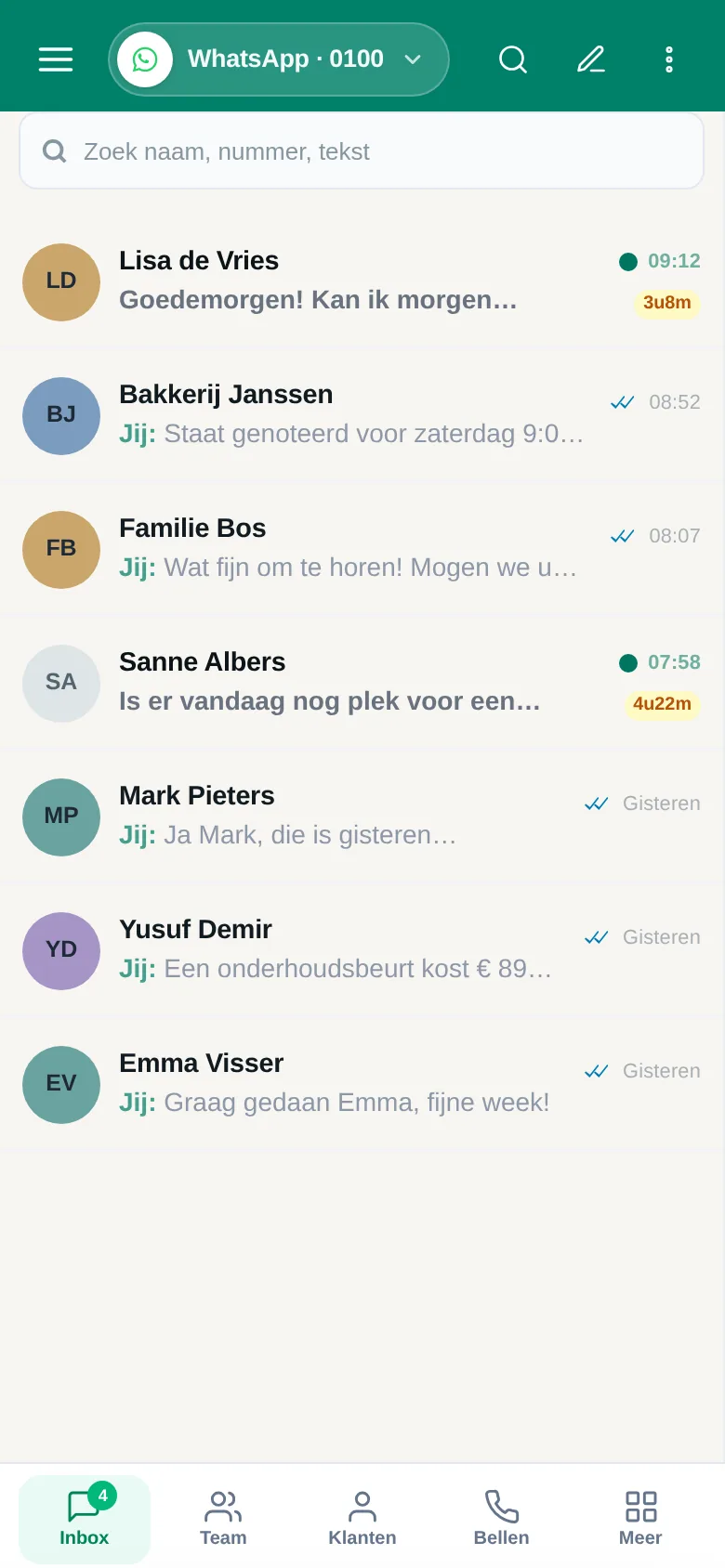
One business number, multiple people answering the messages: in practice that often goes wrong. Messages are left unanswered or two colleagues reply at the same time. Here are the four common ways, when each works and where it goes wrong.
Option 1: share one phone
The simplest way and the worst: everyone picks up the same phone. There is no overview, a message a colleague has already read remains unanswered and when staff change the phone is full of personal stuff. We don't do this.
Option 2: link devices to the Business app
The WhatsApp Business app lets you use the account on other devices alongside the phone (like WhatsApp Web). The maximum number of linked devices and the rules are in the WhatsApp Help Centre and may change; check there for the current number. All linked devices see the same chats, there are no separate roles and you don't see who answered a message.
Option 3: Meta Verified
On the Business app feature page, WhatsApp at Meta mentions Meta Verified: a verification badge, protection against impersonation, priority support and "linking up to 10 devices and agents to your account". It is a paid subscription with Meta and availability depends on country and account. It does not solve the overview problem: you get more devices, not assignment.
Source: WhatsApp Business app, feature page (checked on 21-10-2026).
Option 4: shared inbox
With a shared inbox, all messages run through one environment in which every team member has their own login. You can see who has picked up a conversation, colleagues can transfer a conversation and leave internal notes ("customer wants to call back on Friday"). This is how Slimbot works: you connect your own number, invite colleagues and everyone works in the same inbox on computer or phone.
In the live price list, this is included in the Pro plan: up to 3 team members, shared inbox and routing. For more numbers and departments, there is Business, on request.
| Plan | Per month (excl. VAT) | One-off |
|---|---|---|
| Try-out | € 14,95 | None |
| Starter | € 29,95 | € 300,00 |
| Pro | € 89,95 | € 300,00 |
| Business | On request | On request |
Prices from the live Slimbot price list, excl. VAT, cancel monthly. Current overview: slimbot.nl/prijzen.
Step-by-step plan: from one phone to a team in the inbox
- Define who does what. Write down which questions belong to whom (quotes, planning, administration). That determines routing later.
- Create a free account at slimbot.nl/registreren.
- Connect your number with the QR code (see connect own number).
- Invite colleagues and give them their own login. Never share one password.
- Agree on ground rules: within what time do we respond, who picks up a conversation and how do you hand over.
- Turn on labels such as New, Quote, Appointment and Waiting for customer, so everyone knows where a conversation stands.
Pitfalls we often see
- Two people answering at the same time: first assign an owner to the conversation in the inbox.
- Using a team member's personal WhatsApp for customers: when they leave, the history goes with them.
- No rules about response time: that's what customers notice most.
- Sharing personal data in a group chat: use the inbox, not a private group. See also GDPR and opt-out.
Frequently asked questions
How many team members can work on one WhatsApp number?
That depends on how you set it up. In the Business app, there's a limit on linked devices (see the WhatsApp Help Centre). In a shared inbox, the plan determines the number of team members; with Slimbot Pro that's up to 3, with Business more.
Do my team members need to use their own phone number?
No. Customers only see your business number. Team members log in to the inbox.
Can I assign conversations to a colleague?
Yes, in a shared inbox. In the Business app that's not possible; there you only use labels at most.
Does this also work on mobile?
Yes. The inbox works in the browser and as an app on your phone.
Read more
With your team in one inbox
Create a free account and connect your number, or request a demo first.
Start for free → Schedule a demoPrefer to call? 085 060 4471