Automation

Set up a WhatsApp chatbot in 10 minutes

SB
Slimbot
28 mei 2025⏱ 8 min read

A chatbot that answers FAQs 24/7, qualifies leads and books appointments — without you having to write a line of code. In this article you'll read how to set that up in 10 minutes.
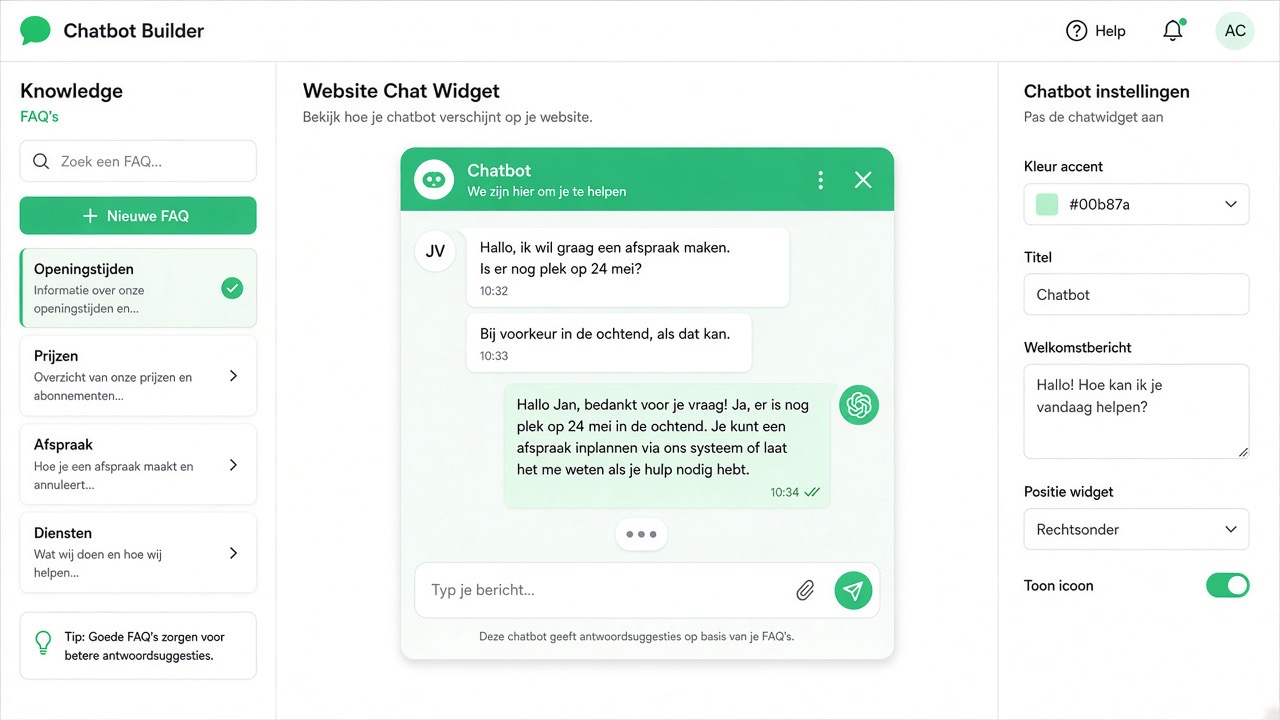
Chatbot widget alongside the team inbox
Same bot on the site and in the inbox. No real customer data.

Overview: 6 steps · total ~10 minutes

1
Create flow in the builder
2 min
2
Configure welcome message
1 min
3
Set up menu options
2 min
4
Link answers
2 min
5
Test (on your own number)
2 min
6
Activate
1 min
1
Create flow
⏱ 2 min

Go to Dashboard → Chatbot → New flow. Choose a starter template: Welcome bot, FAQ bot or Appointments bot. You can adjust your company name and tone of voice directly.

Visual flow editor
⚡ Trigger: every new conversation
↓
💬 Send welcome message + menu
↓
? What does the customer choose?
↓
📋 Answer A / B / C → Team member
2
Configure welcome message
⏱ 1 min

The welcome message is the first thing a customer sees. Make it personal and short. Example text:

Hello! 👋 Welcome to [Your Company]. How can I help you?

1️⃣ Request quote
2️⃣ Schedule appointment
3️⃣ Ask question
4️⃣ Opening hours
💡
Use numbers as menu options (1, 2, 3). Customers can simply type a number or tap the button on mobile.
3
Set up menu options
⏱ 2 min

For each menu option, you create a branch in the flow. Start with a maximum of 4 options — that's what customers can easily process.

  • Quote: form with name, e-mail, project description
  • Appointment: integration with your calendar (or manual confirmation)
  • Ask question: AI answer based on knowledge base, or forward to team member
  • Opening hours: fixed text with automatic update on public holidays
⚠️
Keep menus short. More than 5 options leads to drop-offs. If you have more services, use a submenu for the second layer.
4
Link answers
⏱ 2 min

Link each answer to an action: send text, open form, forward to team member, or trigger a webhook (e.g. to your CRM).

For FAQ questions: upload your existing FAQ document (PDF or text) and the AI automatically uses that knowledge base to formulate answers.

💡
Always add a "Back to menu" option at the bottom of each answer. Customers can then easily navigate back without restarting the conversation.
5
Test
⏱ 2 min

Click Test in the flow editor. A simulation window opens — send messages as if you were a customer and check that all menu options respond correctly.

Also test edge cases: what if a customer types something that isn't in the menu? Make sure the bot then responds politely with a fallback message.

Test simulator
Hello! I'd like to request a quote
Great! Can you provide your name and e-mail address? ✨
Jan de Vries, jan@voorbeeld.nl
✅ Received! We'll be in touch within 1 working day.
6
Activate
⏱ 1 min

Tested everything? Click Activate. Your chatbot is now live for all incoming messages on your WhatsApp Business number.

  • The bot responds immediately to all new conversations
  • Existing open conversations are not interrupted
  • You can pause or adjust the bot at any time
  • All bot interactions are visible in Analytics
💡
Also have a human back-up team ready in the first week. Customers who ask complex questions are forwarded — your team sees those conversations immediately in the inbox.

Results after 30 days

70%
Questions answered automatically
24/7
Available outside opening hours
3x
More leads qualified

Frequently asked questions

Do I need programming knowledge?
No. The flow editor is fully visual — you drag blocks to the right place. No code, no technical knowledge required.
Does the bot speak multiple languages?
Yes. You can create separate flows per language, or enable AI mode which automatically detects the customer's language and responds in the same language.
What if a question is too complex for the bot?
Then the bot automatically forwards to a team member. You set yourself after how many "uncertain" answers the bot hands over.
What does the chatbot component cost extra?
Nothing — the chatbot builder is included in all subscriptions. Only the AI knowledge base component requires the Growth plan or above.

Ready to build your chatbot?

Free account · no credit card · chatbot builder included

Start for free → View chatbot builder
← Back to knowledge base Next: Reduce no-shows →
Test Slimbot live! 👋
Click and try in 2 min →
1