Chatbot & website widget
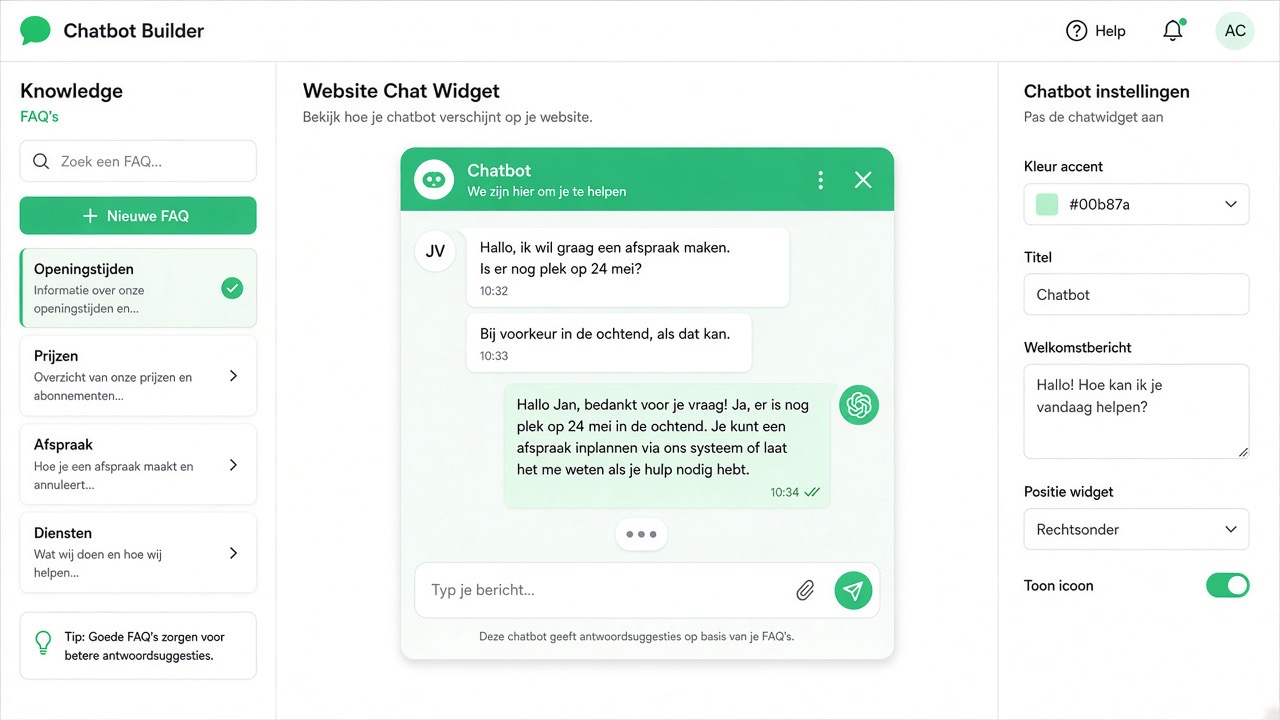
The chatbot is the written side of your digital team member. The same knowledge your assistant uses on WhatsApp is also used in the chat window on your website. So you only train once. In this chapter you'll learn how to fill the chatbot with knowledge, set the tone, place the widget on your site and check that everything is correct before your customers see it.
What you need
- An active account with access to the dashboard.
- Access to your website — for WordPress an administrator account, for a static site or webshop someone who can paste one line of code.
- Your business information to hand: opening hours, service area, services, delivery times and the questions you receive daily.
- About half an hour for the initial setup; you then fine-tune in rounds of five minutes.
Step 1 — Gather your knowledge
A chatbot is only as good as the information you put into it. So don't start in the dashboard, but with yourself: write down the ten to twenty questions customers ask most often. Look at your mailbox and your conversations from recent weeks — customers ask those questions in their own words, and those exact words are what they'll type into the chat window. Watch for three categories: practical questions (opening hours, service area), commercial questions (what does it cost, how quickly can you come) and threshold questions (what if it doesn't work, what about the guarantee). It's often this last group that decides whether someone gets in touch.
Step 2 — Train the chatbot
- Open Train bot in the dashboard.
- Add a question-answer pair for each topic. Keep the answer short: two to four sentences, with one clear next step.
- Do you already have a lot of material? Import a file with questions and answers in bulk, or let our AI suggest drafts based on your website. You always edit yourself.
- Test each new topic immediately in the preview window. Deliberately phrase the question slightly differently from how you entered it — that shows whether the assistant recognises the intent.
- Save. Changes are active immediately, including in the widget already on your site.
Step 3 — Persona: name, tone and transparency
Knowledge determines what your assistant says, the persona determines how. You give your digital colleague a name, a role and a tone of voice: formal or informal, short or detailed, with or without emoji. You also set multilingual support here, so that a visitor in another language automatically receives an answer in their own language.
Set the persona via Train persona in Slimbot. If you work with multiple numbers or brands, each number can have its own persona with its own name.
We strongly advise having the assistant introduce itself as a digital colleague. One sentence suffices: "I'm the digital assistant of [company] — a colleague will take over as soon as necessary." That's honest and customers accept a quick digital response perfectly well, as long as it's clear that a human remains available.
Step 4 — Place the widget on your website
- Go to Chat widget in the dashboard (appearance and embed are also under Chatbot).
- Set the appearance: colour, position and the greeting visitors see first.
- Copy the embed script, or download a ready-made CMS package (WordPress plugin or Shopify snippet) — token and instance ID are already included.
- Paste the code just before
</body>, or install the CMS package following the steps below. - Publish, open your site in a private window and check that the chat window appears in the bottom right.
If you later change the colour or greeting in the dashboard, the visitor sees that immediately — you do not need to paste the embed again (unless you have set fixed overrides in the code).
Conversations from the widget arrive on the Website tab in your inbox, alongside WhatsApp and e-mail. No need to configure per page: the widget recognises your account and branding.
Installation per CMS
Below is the fastest route per platform. If you do not have WordPress or Shopify, the embed script from Chat widget will suffice.
WordPress
- Log in to Slimbot and download the WordPress package: slimbot-messenger-wordpress.zip (only when logged in).
- In WordPress: Plugins → Add New Plugin → Upload, upload the ZIP file and activate Slimbot Messenger.
- Go to Settings → Slimbot Messenger and check token and instance ID (already filled in on download).
- Optional: colour, display name, greeting or position. Then open your site in a private window.
Shopify
- Download slimbot-messenger-shopify.zip (logged in) or copy the Liquid snippet from the CMS package.
- Add it as a theme snippet
slimbot-messenger. - In
layout/theme.liquid, just before</body>:{% render 'slimbot-messenger' %}. - Save and test in a private window. Without ZIP: replace
YOUR_TOKENandYOUR_IIDmanually.
Webflow
- Project Settings → Custom Code → Footer Code.
- Paste the embed script from Chat widget.
- Publish and check on the live site.
Wix
- Settings → Custom Code (or Tracking & Analytics).
- New code, placement: Body — end.
- Paste the Slimbot embed script and publish.
Squarespace
- Settings → Advanced → Code Injection → Footer.
- Paste the embed script and save.
- On plans without Code Injection: use a Code block on the relevant pages.
Step 5 — Testing before you go live
Do a test round with three types of questions: one the bot should know (opening hours), one that falls just outside the knowledge (a very specific price question) and one in which you ask for a human. This way you see whether the answers are correct and whether the conversation is transferred properly when it gets difficult. Also have a colleague test: they'll ask questions you'd never have thought of yourself.
Handover to a human colleague
A good assistant knows when to stop. Provide an escape route: a phone number, a call request or a notification in the inbox. As soon as you respond yourself, the assistant hands the conversation to you. Record which topics always go to a human: complaints, damage, medical questions or non-standard pricing agreements.
Automate once the basics are in place
- Workflows — actions based on keywords, channel or time, for example a different answer outside opening hours.
- Broadcast — one message to multiple contacts, only to people who gave permission. First read GDPR and opt-out.
- Reviews — automatically ask for a review after a completed job.
- Quick replies — fixed texts you can send with one click.
Measure and adjust
Review ten conversations weekly. Questions the assistant evaded or forwarded are exactly the topics missing from your knowledge base. Add them and the gap is closed. Do this for fifteen minutes a week in the first month; after that, maintenance is minimal.
Common mistakes and how to fix them
- The widget does not appear. Usually the script is in a template that is not loaded on every page, or it has been pasted after
</body>. Also clear your cache or optimisation plugin. - The widget is there but remains empty. Often a cookie or script blocker blocks the chat until the visitor gives consent. Put the chat in the correct category in your cookie banner.
- The bot answers too generally. The knowledge base is too thin or the answers are too long. Keep it short, split one long answer into three short ones and add real customer questions.
- The bot mentions prices or delivery times that are incorrect. Explicitly define what the assistant may and may not mention, and have pricing questions forwarded to a quote or to you.
- The tone doesn't match the brand. Adjust the persona instead of rewriting every answer — that works through in one go.
- Conversations aren't coming in. Check that you're looking at the Website tab in the inbox and that notifications are turned on in Settings & team.
Practical examples by sector
- Hair salon or beauty salon. The widget handles the eternal question "can I still come in this afternoon?" and directs the visitor to the appointments page. See for hairdressers.
- Installer, plumber or roofer. The chat asks for details: what problem, which location, how urgent. Urgent goes to the phone, the rest becomes a proper request with address and description. See for installers.
- Estate agent. Visitors ask about viewings; the assistant explains the procedure and collects the details for a call-back appointment. See for estate agents.
- Healthcare and practices. Organisational questions are answered, substantive or medical questions always go to a team member. See for healthcare.
- Webshop. The chat handles questions about shipping, returns and sizing; for a specific order query it forwards the conversation.
Frequently asked questions
Do I need to train the chatbot separately for my website and for WhatsApp?
No. The knowledge base is shared: what you add once, your digital assistant uses on the website, on WhatsApp and in the other channels. Only the persona can differ per number or brand.
Can I see what the chatbot has answered?
Yes. All website conversations are fully in your inbox under the Website tab, including time and progress. You can step in at any time and take over the conversation.
Does a visitor notice they're talking to AI?
That is as it should be. We advise the assistant to introduce itself as a digital colleague and make clear that a team member can take over. That is transparent and works better in practice than pretending.
Does the widget work on WordPress, a webshop and a self-built site?
Yes. For WordPress and Shopify there are ready-made packages; elsewhere you paste one line of code before the closing body tag. Any system with a script or code field works.
What happens outside opening hours?
The chat simply keeps working. With a workflow, you can have the assistant give a different response outside office hours and, for example, collect a call-back request, which you'll find in your inbox the next morning.
Which plan includes the chatbot and full persona training?
The chat function is part of the standard channels; advanced persona training is in the higher plans. On Plans you can see exactly what is in your plan and what an upgrade adds.