Schedule appointments via WhatsApp
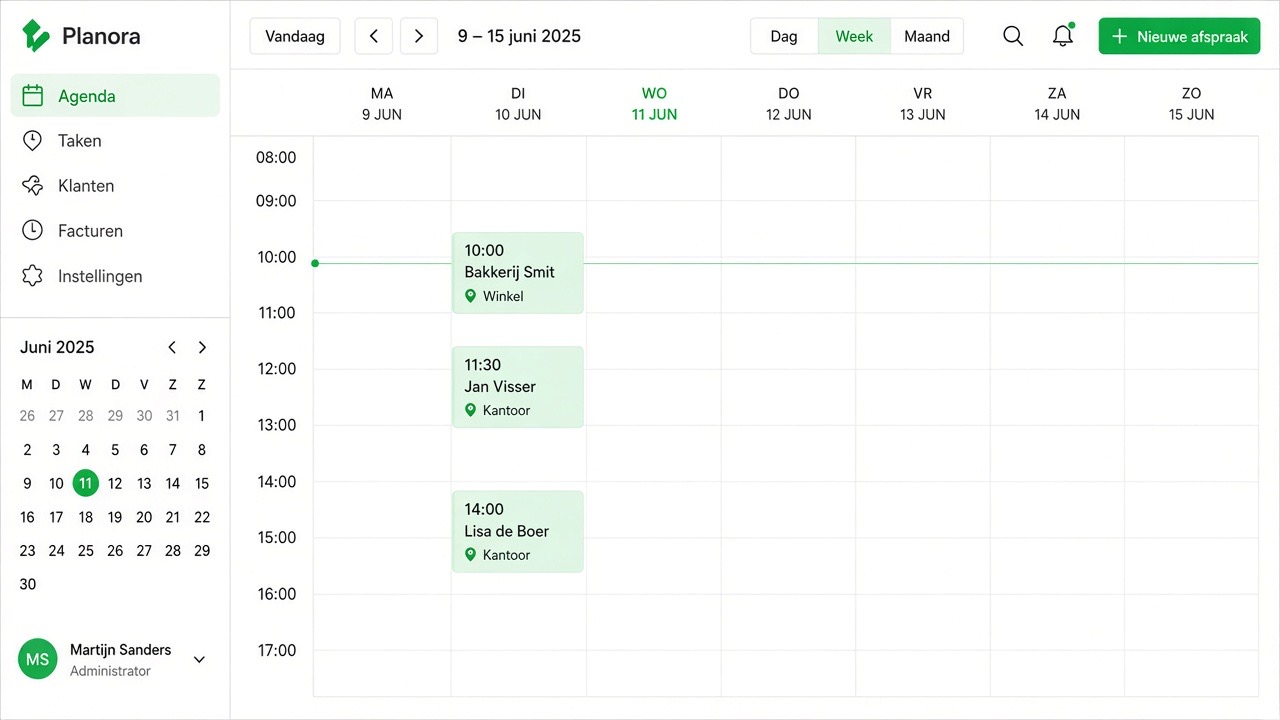
For many businesses, an appointment starts with back-and-forth messages: "can you do Tuesday?", "no, Wednesday?", "what time?", "which address?". That quickly costs four to six messages per appointment, spread over half a day. Via WhatsApp, you can have this process largely handled by a digital colleague, who suggests availability, asks for the required information and confirms the appointment — in the same conversation in which the customer asked their first question.
Why WhatsApp is suitable for appointments
Messages on WhatsApp are usually read much faster than e-mail, and customers don't need to create an account or open a booking page. What's more, the whole conversation stays visible: if there's a dispute later about the agreed time, it's simply there. For businesses that work on location — installation, maintenance, care, consultancy — that's more convenient than a calendar invitation that ends up in a spam filter.
The downside is that WhatsApp is not a calendar. So the structure must come from your setup: which details are mandatory, how you offer availability and how an appointment becomes final.
First determine your appointment rules
Before you set anything up, you establish the ground rules. If you do not do this, appointments will arise that do not fit into your schedule.
- What appointment types exist? For example intake, on-site survey, execution, aftercare. Each type has its own duration.
- What data do you need as a minimum? Name, phone number, address or location, subject, and for businesses a contact person.
- What is your lead time? Can a customer book tomorrow morning, or do you require at least 48 hours?
- Which time slots do you make available? Almost no one wants to open up the entire diary. Work with blocks, for example morning or afternoon.
- Who confirms definitively? Does the assistant confirm itself, or does it prepare a proposal for you to approve?
Step-by-step guide
- Connect WhatsApp. If you haven't done so yet, follow Connect WhatsApp. All appointment conversations will then run via your own business number.
- Define your appointment types and data fields. Do this in your assistant's training, so it knows which questions to ask and in what order. See Training your bot on your own services.
- Determine how availability is offered. Two options: connected calendar with released time slots, or fixed standard blocks that you update periodically.
- Write the confirmation text. Short and complete: date, time slot, location, what the customer needs to prepare and how they can reschedule.
- Set up the reminder. One reminder, well before the appointment, with the option to confirm or reschedule. More on reducing no-shows: Knowledge base – no-shows.
- Arrange rescheduling and cancellation. Make sure "can it be an hour later?" doesn't hit a dead end. The assistant collects the request, you confirm.
- Test with five scenarios. A normal booking, a booking outside your service area, someone who changes their mind twice, someone who cancels and someone who only wants a price.
- Go live and monitor for a week. Check that every confirmed appointment actually appears in your schedule.
The ideal appointment flow in messages
An efficient flow stays under six messages. A workable pattern:
- The assistant introduces itself as a digital colleague and asks what the customer needs help with.
- It determines the appointment type and requests the key details in one message (location and what type of work it concerns).
- He checks whether it falls within your service area and service offering.
- It offers two concrete time slots — not an open question like "when suits you?".
- It confirms the chosen time slot and summarises the appointment.
- Before the appointment, one reminder follows with the option to confirm or reschedule.
Offering two concrete options instead of an open question is the biggest time-saver in the entire process. An open question almost always leads to a time that doesn't suit, and therefore to extra messages.
Consent and privacy
An appointment confirmation and a reminder are part of the service the customer requested themselves — you may send those. Different is using the same number for offers or newsletters: for that you need separate consent, and the customer must be able to unsubscribe easily. Keep those two streams strictly separate and respect an unsubscribe immediately. See Knowledge base — GDPR and opt-out.
Checklist
- Appointment types and corresponding duration are recorded.
- The assistant asks for all the information you need to be able to come or deliver.
- Availability comes from one source; double booking is not possible.
- Every confirmation contains date, time slot, location and how to reschedule.
- Exactly one reminder is set — not three.
- Rescheduling and cancelling work and arrive visibly with you.
- Requests outside your service area are politely declined instead of scheduled.
- Appointment messages and commercial messages are separate; unsubscribe is respected.
- The assistant introduces itself as a digital colleague.
Common mistakes
- Ask open questions about time. 'When suits you?' costs on average two extra messages. Offer options.
- Making the entire diary available. Without buffer time between appointments, your day grinds to a halt at the first overrun.
- Confirming without details. An appointment without an address or contact number still requires you to call back.
- Too many reminders. Three messages for one appointment is perceived as spam and leads to blocks.
- No route for cancelling. Those who can't cancel easily simply don't show up.
- Scheduling appointments outside the service area. Have the assistant always check postcode or location.
- Confirmation only in the conversation. Make sure the appointment also becomes visible in your own planning, not just in the chat.
Frequently asked questions
Can a customer schedule an appointment entirely by themselves via WhatsApp?
Yes, provided you have released availability and indicated which appointment types may be booked independently. Many businesses deliberately choose a hybrid approach: the assistant collects everything and suggests a time slot, you confirm with one tap. That way you keep control of your schedule.
What happens if two customers want the same time slot?
As long as availability comes from one source, a time slot that has just been booked won't be offered again. If you work with fixed standard blocks that you update manually, then double booking is possible — in that case the intermediate form with your confirmation is safer.
How do I prevent no-shows?
Three things help most: a confirmation immediately after scheduling, one reminder well before the appointment, and an easy way to reschedule. Customers who can reschedule will cancel instead of not showing up. This keeps your diary filled with appointments that actually go ahead.
Am I allowed to just send a reminder via WhatsApp?
A reminder for an appointment the customer has made themselves is part of the service and is customary. For promotional or offer messages, this does not apply: for those you need separate consent and unsubscribing must be easy. Keep both streams separate.
Can I have appointments scheduled outside office hours?
Yes, that's one of the strongest reasons to set this up. Most requests come in during the evening. The assistant can then gather all the details and suggest a time slot, so the next morning you only need to confirm.
What if the customer asks something the assistant doesn't have an answer to?
The assistant will then indicate this and hand the conversation over to a team member. The appointment details already collected remain saved in the conversation, so the customer doesn't have to provide anything again.