Phone & calling
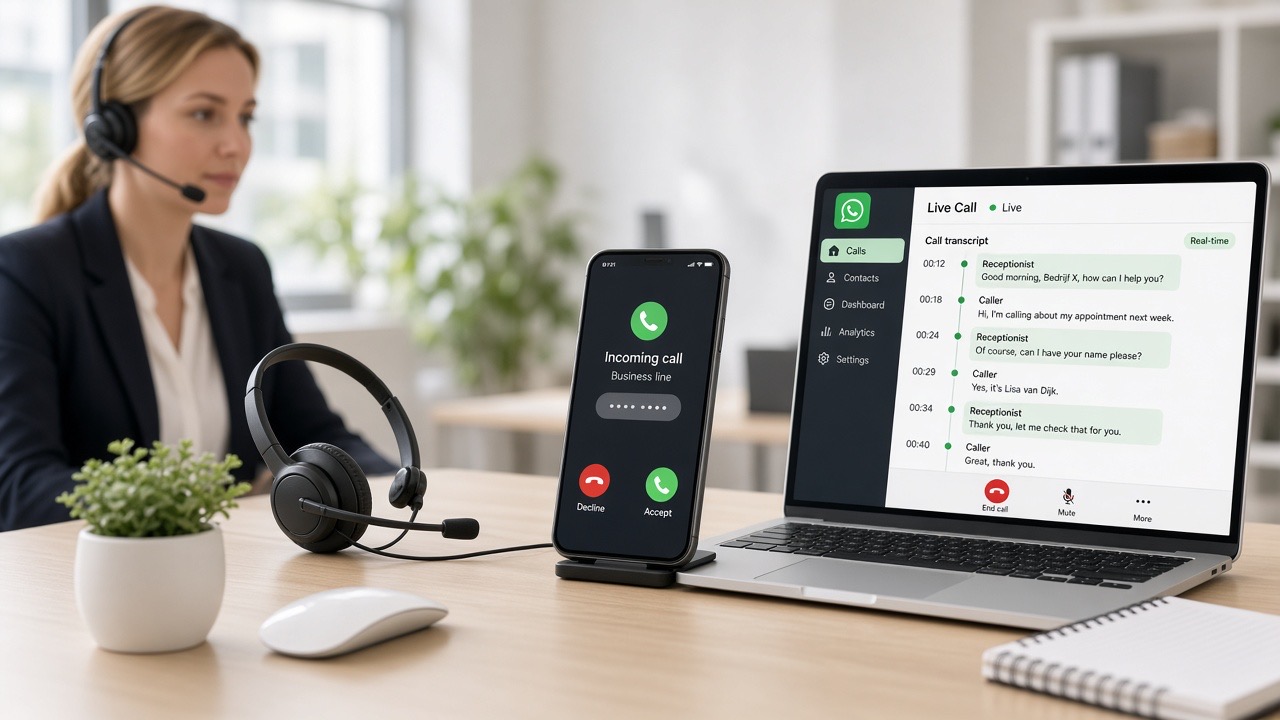
The telephone remains the most important channel for many businesses — and at the same time the channel that most often goes unanswered. Your digital team member answers when you can't: it answers questions, transfers to a colleague, schedules appointments and can also make outbound calls. Every call is recorded and summarised, so you can read back exactly what was agreed afterwards. In this chapter, you set that up step by step.
What your digital team member can do on the phone
- Answering incoming calls. The assistant answers with your greeting, listens and answers questions that are in your knowledge base.
- Transferring to a human. If the conversation is about something where you need to be involved yourself, it is forwarded to your own number or that of a colleague.
- Making appointments. The assistant notes who, when and what for, and prepares the appointment.
- Make outbound calls yourself. For example, for a call-back request or a confirmation, always within the agreements you set.
- Record and summarise. A recording and brief summary of every call is available in the dashboard.
What you need
- An account with phone answering in your plan — see Plans.
- A business number: a new 085 number through us, or your existing number which you forward.
- A forwarding number of yourself or a colleague, for conversations that need to go to a person.
- Your opening hours and a short list of topics that the assistant may and may not handle.
Step 1 — Opening the phone hub
Open Phone in the dashboard. This is your central overview:
- Your active and requested numbers, with their status.
- Recent calls with time, duration, summary and recording.
- Click-to-call: make calls from a contact or from an ongoing conversation in the inbox.
- The button to request a new number or activate an AI phone line.
Step 2 — Arranging a number
- Go to Phone and choose Buy / activate number.
- Choose an available 085 number, or indicate that you want to use your existing number.
- We connect the number to your account and to your WhatsApp flow, so that callers and WhatsApp users end up in the same environment.
- Using your own number? Set up call forwarding with your current provider. You can choose to always forward, or only on no answer and when busy — the latter is the soft start that most businesses choose.
Step 3 — Availability and forwarding rules
Define what should happen when. During office hours, for example, the assistant only answers if you don't pick up, and puts urgent cases straight through. Outside office hours it handles things itself, schedules a call-back appointment or takes a message. Also decide who receives the transfer and what happens if that person doesn't answer — a call-back request in the inbox is usually better than ringing endlessly.
Step 4 — What the assistant says
The phone line uses the same knowledge base as your chat and WhatsApp, plus the voice and persona you chose in Speech & voice. For phone answering, watch three things:
- The greeting. Brief, with your company name, and with the honest statement that the caller is speaking to a digital colleague and that a team member can take over.
- The enquiry. Determine which data each conversation should yield: name, telephone number, location and the nature of the question.
- The boundary. Explicitly state which topics always go to a person — complaints, damage, medical questions, deviating price agreements.
Step 5 — Test calling yourself
Call your own number with a mobile phone and run three tests: a general question, a request to speak to a team member, and an appointment request. Then listen to the recording and read the summary. This way you'll hear how your business sounds and immediately see whether the summary is useful for your administration.
Recordings, summaries and your customers
Calls are recorded and automatically summarised. That's handy — you no longer need to take notes — but it also brings an obligation: inform callers that the call is being recorded, for example in the greeting, and state in your privacy policy why you do this and how long you keep recordings. See Privacy, and arrange the rest of your settings in Settings & team.
Outbound calling and click-to-call
From Contacts or from a conversation in the inbox you call with one click. The assistant can also make outbound calls, for example to handle a call-back request or confirm an appointment. Only do this with people who gave reason to do so: someone who called, messaged or filled in a form themselves. Unsolicited business calls to people without a relationship with your company are not permitted and are moreover counterproductive. See Inbound versus outbound.
Common mistakes and how to fix them
- Callers get no answer whilst the number is active. Check whether call forwarding at your current provider is actually active; that setting sometimes disappears after a change of subscription or device.
- Everything is forwarded, the assistant handles nothing. The knowledge base is too thin. Add the ten most frequently asked phone questions via Train your bot.
- Nothing is transferred, whilst it should be. No valid forwarding number is set, or the colleague is unavailable. Set a second number or a call-back request as a fallback.
- The summary is missing details. Usually the conversation was too short or both parties talked over each other. Have the assistant summarise and confirm at the end — that also improves the recording.
- The caller doesn't realise they're speaking to AI. Put the announcement in the first sentence of the greeting, not halfway through.
- Calls are coming in, but no one sees them. Turn on notifications and agree who will check the phone hub daily. See Channels overview.
Practical examples by sector
- Installation and emergency services. Engineers are under a floor or on a roof and can't answer. The assistant asks what's going on, how urgent it is and where the address is, and in a real emergency calls the engineer on duty. See for installers.
- Hair and beauty salons. The phone rings during a haircut. The assistant takes the appointment, confirms by message and keeps the diary up to date. See for hairdressers.
- Estate agency. Viewing requests come in during the evening. The assistant explains the procedure and schedules a call-back. See for estate agents.
- Healthcare and practices. Organisational questions are handled, substantive or medical questions go directly to a team member — with a clear message that the caller is speaking to a digital assistant. See for healthcare.
- Hospitality. During the lunch rush nobody can get to the phone. Reservations and questions about opening hours are taken and passed on neatly.
Frequently asked questions
Can the digital team member answer my phone if I cannot?
Yes. It answers incoming calls, replies to questions from your knowledge base, schedules appointments and forwards to a team member when necessary.
Can I keep using my existing phone number?
Yes. You can activate a new 085 number, or forward your current number — always, or only on no answer and when busy. The latter is the safest way to start.
Are calls recorded?
Yes, calls are recorded and automatically summarised, so you can read them back without listening to everything. Mention the recording in your greeting and document it in your privacy policy.
Can the assistant also make calls itself?
Yes, outbound calling is possible, for example for call-back requests and confirmations. Only call people who sought contact themselves; we do not make unsolicited cold calls.
What happens if the assistant doesn't know the answer?
Then it forwards to you or a colleague, or it notes a call-back request that appears directly in your inbox. So the caller never leaves empty-handed.
Is phone answering included in my plan?
Phone answering is an add-on to the standard channels. On Plans you can see what's in your plan; via Plans & upgrade or AI Phone Answering you can request it.