Getting started
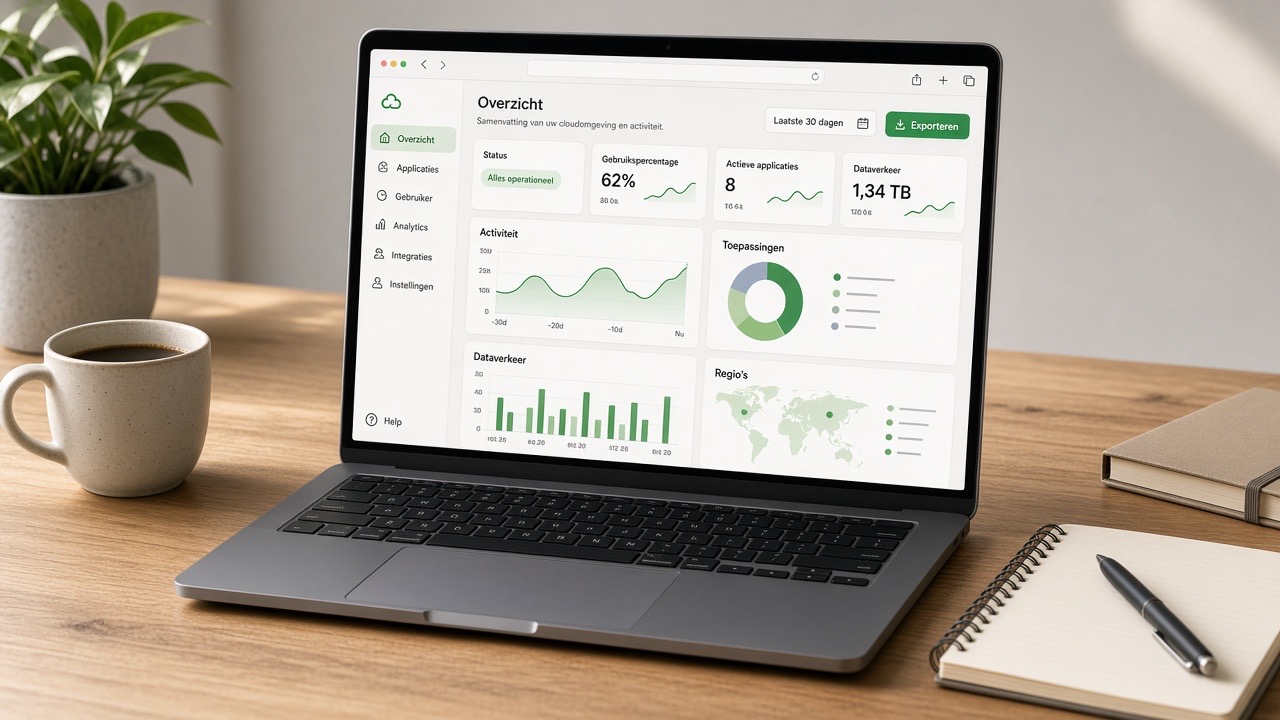
Welcome to Slimbot: channels and AI under your brand — WhatsApp, website, e-mail and phone. In this chapter you lay the foundation: account, initial choice (AI and website), plan, logging in and the first steps in the dashboard. You don't need technical knowledge. Allow about ten minutes. At the end, your account will be ready to connect WhatsApp.
What you need
- A business e-mail address you can currently access (you will receive an activation link).
- Your company name and a telephone number where you can be reached.
- The phone on which WhatsApp Business is installed — only needed if you want to connect your own number straight away.
- About ten minutes of quiet time.
Step 1 — Account & initial choice
- Go to the sign-up page (or via Plans → Set up your start).
- Enter your company details: company name, your name, e-mail address and phone number.
- Choose with or without AI, and what you'll do with your website: index your own site, create a new one, or later.
- Choose a plan. Not sure? Start small — you can upgrade later whilst keeping all your data.
- Agree to the terms and submit the form.
- Open the e-mail you receive and click on the activation link. This link logs you in directly.
Are you already a customer with us? Then you don't need to create a separate account. Log in to Slimbot and open Slimbot from the overview: you'll reach the dashboard without logging in a second time.
Step 2 — Choose plan
The current plans, features and prices are always on the Plans page. In broad terms, the offering looks like this:
| Plan | What for | Key features |
|---|---|---|
| Try-out | First experience how the assistant responds | Test number, basic answers, view inbox |
| Starter | Small businesses that want to use their own number | Connect own WhatsApp number, inbox, basic chatbot |
| Pro | Businesses that really want the assistant to speak in their own way | Training persona, speech and voice, labels, campaigns |
| Business | Larger volumes and multiple channels | Official WhatsApp Business API, phone, business e-mail |
More explanation about differences and switching can be found in chapter Plans & upgrade. If you want to know which connection method belongs to which plan, see Choosing a connection.
Step 3 — Log in
There are three ways to get started. They all lead to the same dashboard:
- E-mail address and password via the dashboard. The safest choice if you work with multiple people.
- Google or Facebook. Note: use the account with the same e-mail address you signed up with, otherwise you will accidentally create a second account.
- Login link. Handy on a new phone or laptop; the link has limited validity and won't work afterwards.
Lost your password? Request a new one via forgotten password. You'll receive a recovery e-mail within a few minutes.
Step 4 — Tour of the dashboard
After logging in, you'll see the overview. These components are important to recognise:
- Onboarding — your setup. A short list of the steps still outstanding, such as channels, connecting a number, website and training the assistant. Work through this list from top to bottom.
- Channels overview. On the dashboard and under Platform → Channels you see WhatsApp, e-mail, phone, website chat and website with status.
- Connection status. Here you see whether your number is connected, whether a QR code still needs to be scanned, or whether no number has been connected yet.
- Quick actions and tools. Shortcuts to the inbox, contacts, chatbot, training, phone and e-mail.
- Figures and activity. Messages today and this week, unique contacts, open conversations and an activity feed of what has just happened.
At the top there is always a link to this manual and to the knowledge base, so you are never far from an explanation.
Step 5 — The initial settings
Before you connect, take two minutes for Settings:
- Company details. Check company name and phone number; the assistant uses these in conversations.
- Assistant name. Give your assistant a name that fits your brand. Customers will see this name.
- Reply mode. Decide whether the assistant only reads along, suggests replies that you approve, handles simple questions itself or replies completely independently. Feel free to start with suggestions and give it more freedom later.
- Notifications. Choose whether you want a notification for a new conversation, for a new lead and whether you want to receive a daily summary, by e-mail or by WhatsApp.
Step 6 — Choose channels
Slimbot bundles WhatsApp, website chat, e-mail, phone and website. Open Platform → Channels for status and deep links, or tick preferences in Settings → Channels. The dashboard adapts the onboarding accordingly. Explanation per channel: chapter Channels overview.
Ready to go live — short checklist
- Account activated and you can log in.
- AI and website choice made (or later in the dashboard).
- Plan chosen that suits your way of connecting.
- Company name, assistant name and response mode configured.
- Channels overview viewed; WhatsApp connected — see Connect WhatsApp.
- Test message sent and answered in the inbox.
Common mistakes and how to fix them
| What you see | Likely cause | Solution |
|---|---|---|
| No activation e-mail | E-mail in spam or typo in the address | Check the spam folder, search for the sender and request the link again with the correct address |
| Logging in works, but the dashboard is empty | You have accidentally logged in with a second account | Log out and log in with exactly the e-mail address from the sign-up, or use the same social login as the first time |
| 'Next' button stays grey | A required field is still empty | Enter company name and industry; the button will then become active |
| Login link no longer works | The link has expired or has already been used | Request a new link or log in with password |
| Function is visible but not clickable | The function is part of a higher plan | View Plans and upgrade from the dashboard |
| No conversations visible yet | No number has been connected yet | Follow Connect WhatsApp and then send yourself a test message |
Tips for a smooth start
- In the first week, set a fixed time each day to go through the inbox. This way you will immediately see which questions come up frequently.
- Note those recurring questions: they form the basis for your first quick replies and for training the assistant.
- In the beginning, change one thing at a time. That way you always know which adjustment made the difference.
Frequently asked questions
How long does it take before Slimbot works?
Creating your account takes about ten minutes. After that, you connect WhatsApp; with an app connection (QR code) you are usually live within a few minutes. If you choose the official WhatsApp Business API, the lead time depends on the verification of your business details.
Should I switch on AI straight away?
No. During the initial setup you choose with or without AI. Without AI the inbox works as normal; switching AI on later is always possible in the dashboard.
Can I change plan later?
Yes. You can upgrade at any time from the dashboard or the plans page. Your conversations, contacts and settings are simply retained.
Do I need a separate business number to get started?
No. You can first try it out on a test number. As soon as you are sure it works, you connect your own WhatsApp number or request a new business number.
I am already a customer. Do I need to create a new account?
No. If you're already a customer, you open Slimbot with one click from Slimbot. You log in with the same account and don't need to register a second time.
Can colleagues view the same account?
Yes. You can add team members so that multiple people use the same inbox. You arrange that in the Settings and team section.
Can't find your question? Look in the Frequently asked questions chapter or contact us via Support.
Next step: Connect WhatsApp →