Connect WhatsApp
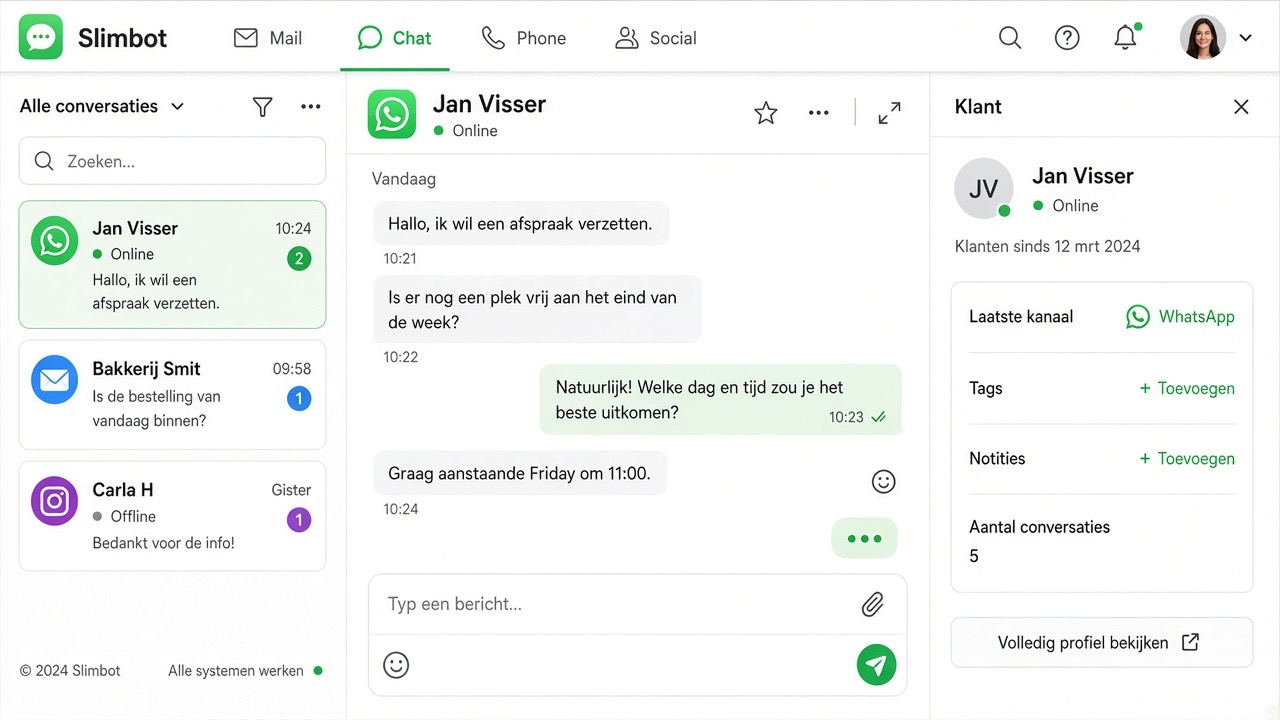
Without a connection, your assistant cannot see messages. In this chapter you connect WhatsApp to Slimbot. There are three ways and they all lead to the same inbox: connect yourself with a QR code, connect via the official WhatsApp Business API, or have us set it up. A full comparison is at Choose connection.
What you need
- An active Slimbot account — see chapter Getting started.
- The phone number you use for business, including country code.
- For an app connection: the phone with WhatsApp Business on it, with internet.
- For the official API: access to the business account in which your number is registered, and your business details (KvK number, address, website).
Which option suits you?
| App integration (QR) | Official WhatsApp Business API | We'll arrange it | |
|---|---|---|---|
| Speed | A few minutes | Depending on verification | Usually contact within one working day |
| Phone needed? | Yes, to scan and stay online | No | Depends on the chosen method |
| Verification | Not needed to get started | Business verification required | We guide the verification |
| Campaigns with templates | Limited | Yes, with approved templates | Yes, if the API is chosen |
| Suits | SMEs and teams with normal volumes | High volumes or no app management | For those who want to go live quickly without technical hassle |
Read more background in the knowledge base: Keep WhatsApp Business or switch and the official WhatsApp Business API explained.
Option A — App connection with a QR code
The quickest route and the best start for most businesses. You keep your own number and your app continues to work as normal.
- Open the dashboard and click Show QR code under Connection status, or go directly to the connection page.
- Check that the number shown is correct. If the wrong number is displayed, first adjust this in Settings.
- Take your phone and open WhatsApp Business on the number you want to connect.
- On Android: tap the three dots at the top right → Linked devices → Link a device. On iPhone: tap Settings at the bottom right → Linked devices → Link a device.
- Scan the QR code on your screen. Unlock your phone first if prompted.
- Wait until the status changes to Connected. This usually takes a few seconds.
- Send a test message from another device to your business number and check whether it appears in the inbox.
Option B — Official WhatsApp Business API
This integration works independently of your phone and is designed for higher volumes, campaigns with approved templates and multiple team members at once.
- In the dashboard, go to the official API section and start the integration.
- Log in with the business account that holds your WhatsApp number. You do not need a developer account.
- Select the number you want to use in Slimbot.
- Complete the business verification. Ensure that company name, address and website match your official registration exactly — that prevents rejections.
- Set your display name. Customers see this name above the conversation.
- After approval, check that incoming messages arrive in the same inbox as with the app integration.
Option C — We'll arrange it for you
Don't have the time or inclination to do this yourself? Then choose the onboarding service. You indicate which number you want to use, we usually contact you within one working day and set up the connection. This also includes setting up the first answers and testing a conversation. You can request this from the dashboard under Connection status, or by e-mail via support@slimbot.nl.
No business number yet?
You can request a new business number that is directly linked to your assistant, or have your existing number transferred. You arrange both via the phone page and the Phone section in the dashboard. More on this in chapter Phone & calling.
After connecting: the initial settings
- In Settings → WhatsApp, choose the reply mode: read-only, suggest replies, simple questions automatically, or fully autonomous.
- Decide whether the assistant only manages incoming conversations or may also send messages itself.
- Send a test message and assess the response. If the tone isn't right, adjust the assistant's instruction.
- Tick the other channels you want to use.
Troubleshooting
| What you see | Likely cause | Solution |
|---|---|---|
| QR code not loading or keeps spinning | The code has expired or the page has been open too long | Refresh the page and scan the new code within one minute |
| Status remains on 'Scan QR' | The scan has not been completed on the phone | Close the scan screen, reopen Linked devices and scan again |
| Connection keeps dropping | Phone offline for long periods, switched off, or battery-saving mode that closes WhatsApp | Turn off battery optimisation for WhatsApp Business and ensure a stable internet connection |
| Messages are not arriving in the inbox | The connected number differs from the number customers are messaging | Check the number in Settings and reconnect if necessary |
| Notification that the number is already connected elsewhere | The number is already in use with another connection | Disconnect the old integration or choose a different number, then try again |
| Integration via the official API stops at login | Pop-ups blocked or insufficient permissions on the business account | Allow pop-ups, log in as administrator of the business account and start again |
| Business verification rejected | Details do not match the official registration | Correct name, address and website and resubmit; we can help if needed |
Tips
- Always test from a different device than the connected number. Messaging yourself gives a distorted picture.
- Preferably connect a number that belongs to the company, not the private number of a team member who might leave tomorrow.
- Let the assistant suggest replies for the first few days instead of sending directly. You'll then see exactly what it would say.
- Never send unsolicited messages to people who have not given permission; read the explanation about unsubscribing and privacy.
Frequently asked questions
Will WhatsApp Business continue to work normally on my phone?
Yes. With an app connection, your app on the phone remains the main device and Slimbot works as an additional connected device, similar to WhatsApp Web. So you can continue to read and reply yourself.
Does my phone need to stay on?
Your phone does not need to be in your hand permanently, but it must come online occasionally to keep the connection valid. If the device stays off or without internet for a long time, the connection may be lost and you will need to scan again.
What is the difference between the app connection and the official WhatsApp Business API?
The app integration uses your existing number and is active within a few minutes. The official API runs independently of your phone, is intended for larger volumes and campaigns with pre-approved templates, and requires verification of your business details.
Can I keep my existing business number?
Yes. With both the app integration and the official API, you can use your current number. If you do not yet have a business number, you can request one or have an existing number transferred.
I see the notification that the integration is still in development mode. What does that mean?
This means that fully self-connecting the official API for your account has not yet been released. In the meantime, you can be connected with guidance: email support@slimbot.nl and we'll set it up together with you.
Will I lose old conversations if the connection drops?
No. Everything that came in via Slimbot remains in your inbox. After reconnecting you continue where you left off; only messages that came in on your phone during the interruption may not always appear in the inbox.
Can't work it out? See Frequently asked questions or ask for help via Support.
Next step: Inbox & messages →