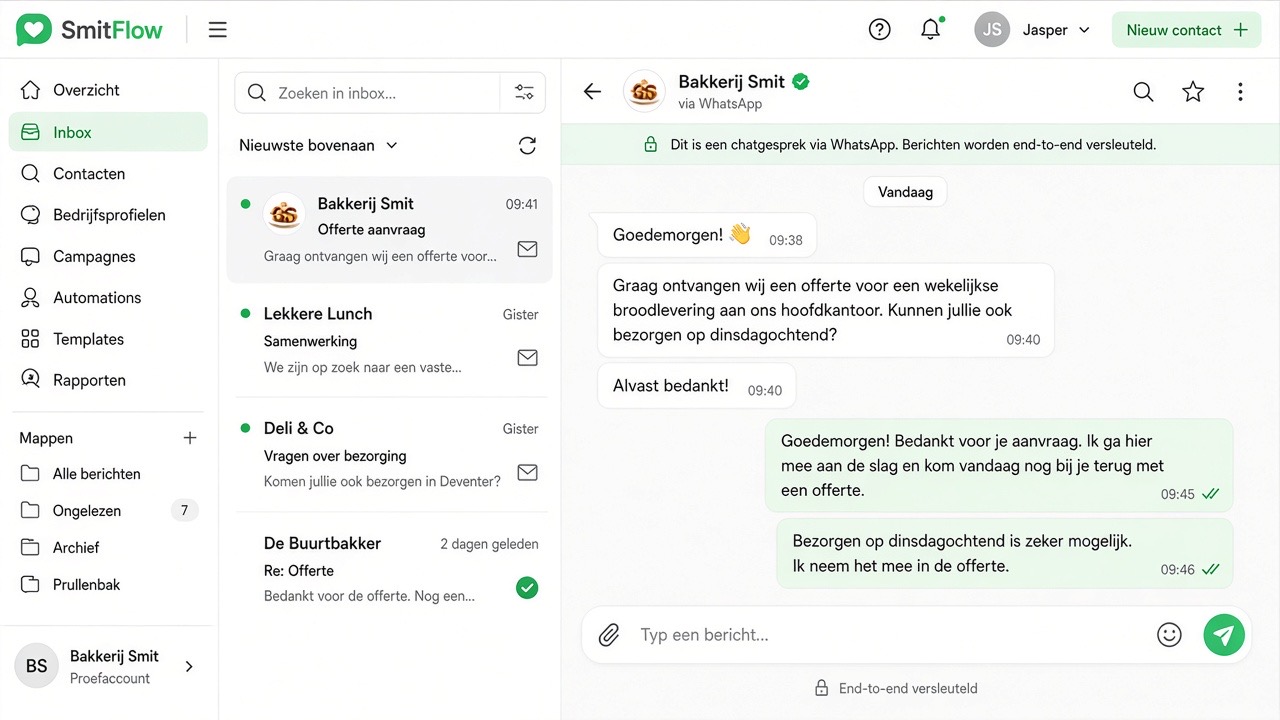
E-mail is still the formal channel: quotes, invoices, confirmations and everything that needs to be retrieved later. In this chapter, you create mailboxes on your own domain, connect them to your phone and laptop, and ensure that incoming e-mail arrives in the same inbox alongside your WhatsApp and website conversations. Everything runs on Dutch infrastructure, under your own domain name — no address from a free service behind your company name.
What you need
- Your own domain name. If you don't have one yet, register one via Domain.
- Access to the DNS settings of that domain, or your consent for us to arrange this for you.
- A list of the addresses you want:
info@is the minimum, plus oftenadministratie@,offerte@or an address per team member. - Your phone and laptop to hand to set up the mailbox straight away.
Step 1 — Create a mailbox
- Open Mailboxes in the dashboard.
- Click New mailbox and enter the address, for example
info@uwdomein.nl. - Choose a strong, unique password. Never use a password that you also use elsewhere — mailboxes are a popular target.
- Save. The mailbox is immediately active.
- Log in via the webmail link on the mailbox page and send yourself a test message.
info@ and administratie@ continue to work if someone leaves the company; jan@ not. You can always add personal addresses alongside.Step 2 — Setting up your domain correctly
For reliable delivery, a few settings at your domain need to be correct. Briefly explained:
- The MX record. This determines where incoming mail goes. If it's set incorrectly, your mail will simply arrive somewhere else.
- The sending permission (SPF). This tells your domain which systems are allowed to send on your behalf.
- The digital signature (DKIM). This proves that a message has not been altered in transit.
- The policy (DMARC). This tells recipients what to do with mail that doesn't check out.
If you manage the domain with us, we set this up correctly by default. If your domain is elsewhere, you'll receive the exact records from us to copy. Bear in mind that a DNS change isn't always immediately visible everywhere; give it a few hours before concluding that something is wrong.
Step 3 — E-mail on your phone and laptop
You can work entirely in webmail, but most business owners also want their e-mail in the app on their phone. Each mailbox has its own details for this, which are on the mailbox page in the dashboard. When setting up, watch for three things:
- Choose IMAP and not POP3. With IMAP everything stays synchronised: what you read on your phone is also read on your laptop.
- Turn on secure connection (TLS/SSL) for both incoming and outgoing mail.
- Use the same login credentials for the outgoing server as for the incoming. Don't forget to tick that the outgoing server requires authentication — that's the most common mistake.
Step 4 — E-mail in your shared inbox
Incoming messages appear on the Mail tab in your inbox, alongside WhatsApp and website chat. This means you see the whole story per customer: first the chat on your site, then the app, then the quote by e-mail. For teams, that is the biggest difference from an ordinary mailbox — everyone looks at the same overview instead of their own inbox.
You can send in three ways: directly from the inbox, via Send mail in the dashboard, or simply in webmail when you need attachments, folders or an extensive signature. Which channels your digital team member actively serves, you set under Settings & team.
Step 5 — Signature and branding
Set a signature per mailbox with company name, telephone number, website and KvK number. Keep it short and textual; large images in signatures are often blocked and make your e-mail heavier than necessary. If you use multiple addresses, ensure they have the same formatting — that looks professional and prevents a customer from doubting whether a message really comes from you.
Delivery: why e-mail sometimes ends up in the spam folder
New addresses still need to build their reputation. So start gently: in the first few days, send normal, personal messages instead of immediately sending hundreds of newsletters. Avoid messages that consist of one large image, don't write in capital letters and don't put a link in every sentence. Ask customers you e-mail frequently to add your address to their contacts. And only send commercial e-mail to people who gave permission — that's not only courteous, it's also the fastest way to keep your delivery good.
Common mistakes and how to fix them
- Logging in doesn't work in the app, but does in webmail. Almost always the outgoing server is set incorrectly or the tick for authentication is missing. Copy the details from the mailbox page exactly.
- You receive nothing. Check your domain's receiving record. If it still points to your old provider, your post arrives there and not here.
- Your e-mail ends up in others' spam. Check sending permission, signature and policy of your domain, and pay attention to the content of the message. If the problem persists, e-mail support@slimbot.nl with an example message.
- The same email appears twice or disappears. Probably POP3 is still configured somewhere, which removes messages from the server. Switch everything to IMAP.
- The mailbox is full. Clear large attachments and empty your bin and spam folder; they count too.
- A colleague doesn't see the e-mail. Check whether they have access to the correct inbox channel in Settings & team.
Practical examples by sector
- Installation and construction companies. The request comes in via WhatsApp, the quote goes by e-mail. Because both are in the same inbox, the engineer sees the photos and the office team member sees the quote — without forwarding.
- Hair salon and beauty. Appointments run through the app, but suppliers and the accountant send e-mails. A separate
administratie@address keeps that separate. See for hairdressers. - Estate agency. Brochures, valuations and documents go by e-mail; the entire file per customer remains visible alongside the chat conversations. See for estate agents.
- Healthcare and practices. Use role-based addresses and never send sensitive data by e-mail without agreement; refer to a secure channel or telephone consultation for substantive matters. See for healthcare.
- Webshop. Order and return e-mails arrive alongside the chat, so a customer doesn't have to explain the same thing twice.
Frequently asked questions
Can I get mailboxes on my own domain name?
Yes. You create mailboxes yourself such as info@uwdomein.nl. If you don't have a domain yet, register one via the dashboard.
Can I keep my existing e-mail address?
Yes. You move your domain or adjust its settings; your address remains the same. Existing messages can be transferred when switching — enquire via support@slimbot.nl.
Does my e-mail also work in Outlook, Apple Mail or Gmail on my phone?
Yes. Every mailbox works with the standard settings for IMAP and outgoing mail, with secure connection. The details are shown with the mailbox in the dashboard.
Does my e-mail go into the same inbox as WhatsApp?
Yes. Incoming e-mail appears on the Mail tab next to your WhatsApp and website conversations, so you see the entire contact per customer in one place.
Why does my email end up in the spam folder?
Usually because the sending settings of the domain are not yet fully correct, or because a new address has not yet built up a reputation. Check the domain settings and build up your sending volume gradually.
How many mailboxes can I create?
That depends on your plan. On Plans you can see what's in your plan; you can upgrade via Plans & upgrade.