Inbox & messages
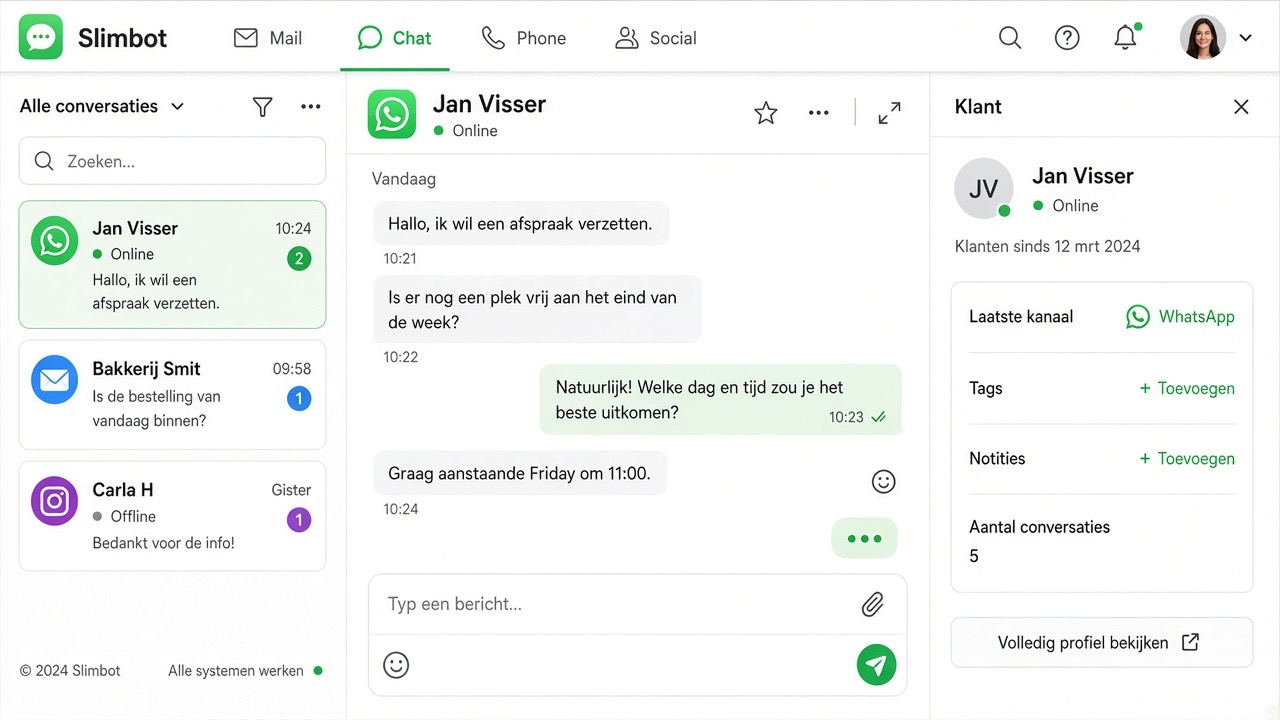
The inbox is where you spend most of your day. All customer contacts come together there: WhatsApp conversations, e-mail and chats via the widget on your website. In this chapter you'll get to know the inbox, answer conversations, determine how much the assistant does per conversation and set up quick replies, contacts and labels.
What you need
- A connected channel — usually WhatsApp; see Connect WhatsApp.
- A list of questions that come up frequently with you; you turn those into quick replies.
- Possibly an agreement with your team about who picks up which conversation.
1. Opening and reading the inbox
- Open Messages from the dashboard or via Quick actions.
- Choose the channel at the top: WhatsApp, E-mail or Website.
- On the left is the list of conversations, with the last message and the time. Filter on unread to see what still requires attention.
- Click on a conversation to open the full history.
- View the contact's details on the right or at the top: name, number and any notes.
The three tabs each have their own source. WhatsApp shows conversations from your connected number. Mail shows messages from your business mailboxes (see Email). Website shows chats and leads via the widget (see Chatbot & website widget). If a tab is empty, that channel simply hasn't been set up yet.
2. Answer a conversation
- Open the conversation and read through the latest messages.
- Type your reply in the field at the bottom, or choose a quick reply using the shortcode.
- If the assistant has prepared a suggestion, review it. You can accept it, edit it or ignore it.
- Send the message. It appears immediately in the thread.
- Conversation finished? Archive it or add a label to keep your list tidy.
If you want to start a conversation yourself, use the new conversation button and enter the phone number including country code. Bear in mind that you should only contact people who have given you reason to do so; read the explanation about consent and unsubscribing.
3. Determine what the assistant does per conversation
At the top of each conversation is a toggle switch. This lets you decide per customer how much you hand over:
| Status | What happens | When to use |
|---|---|---|
| Off | The assistant does nothing in this conversation | Sensitive or complex matters that you handle yourself |
| Suggestions | The assistant writes a reply, you send it | The first few weeks, and with new types of questions |
| Partially | Simple standard questions go automatically, the rest comes as a suggestion | Opening hours, address and price indications |
| Automatic | The assistant answers independently | Outside office hours or for many similar questions |
| Exclude | The conversation is completely ignored by the assistant | Internal chats, suppliers or private contacts |
4. Managing contacts
Every conversation belongs to a contact. Under Contacts you manage that information:
- Create a contact from a conversation and add name, company and e-mail address.
- Give the contact a category, for example customer, lead or supplier.
- Put in the notes field what a colleague needs to know: appointments made, preferences or previous complaints.
- Filter later by category to view only leads, for example.
Well-maintained contacts make your assistant's answers more personal and prevent you from asking someone the same thing twice.
5. Set up quick replies
Quick replies are ready-made texts you call up with a short code. They save a lot of time every day. Manage them via Quick replies:
- Click on new template.
- Enter a short shortcode, for example
/openingor/offerte. - Write the text. Use variables such as
{{naam}}and{{bedrijf}}to personalise the message. - Choose a category, for example greeting, sales, support or closing.
- Save and use the shortcode from now on in the inbox reply field.
Start with five to ten quick replies for your most frequently asked questions. That often already covers a large part of your daily messages.
5b. WhatsApp Cloud: 24-hour window & Meta templates
If you work via the official WhatsApp Cloud, fixed WhatsApp rules apply. These are also in Slimbot (ℹ buttons in the inbox and Team chat):
- Within 24 hours of a message from the customer: you may type freely and use quick replies.
- After 24 hours: only an approved Meta template (Template management or the template picker). Quick replies then do not work to the customer.
- "As template" in the chat saves a quick reply — that is different from a Meta template.
- Team chat is internal; the Cloud rules only apply when you send to the customer from the inbox.
Full explanation: 24-hour window & templates. Manage templates: Template management.
6. Labels for overview
Labels help you stay on top of busy days. In Labels, create a set that fits your workflow, for example quote sent, awaiting customer and resolved. Give each label its own colour and assign them to contacts. This way you see at a glance which conversations still need follow-up and prevent two colleagues from picking up the same conversation.
A workable daily routine
- Start the day with the filter on unread and work from top to bottom.
- Answer or label every conversation; don't leave anything without a status.
- Archive what's finished, so your list stays short.
- Note weekly which question came up most often and create a quick reply or training from it.
Troubleshooting
| What you see | Likely cause | Solution |
|---|---|---|
| The reply field is greyed out / you cannot type | No active integration, or with Cloud: 24-hour window closed | Check connection status; for Cloud choose a Meta template — see 24-hour rules |
| Conversation list remains empty | No incoming messages yet since connection | Have someone send a test message to your business number |
| Mail tab is empty | No mailbox has been set up yet | Set up your business email via chapter Email |
| Website tab is empty | The chat widget is not yet on your site | Place the code according to Chatbot & website widget |
| The assistant replies when you don't want it to | The conversation is set to automatic | Set the switch to off or use exclude for this conversation |
| A customer received two replies | A colleague and the assistant responded at the same time | Work with labels and set busy conversations to suggestions |
| Messages not loading | Temporary connection problem in the browser | Refresh the page; if the problem persists, report it via Support |
Frequently asked questions
Can I reply myself whilst the assistant is on?
Yes. You can always type yourself. If you want to take over a conversation completely, turn the assistant off for that conversation; he'll stay silent until you turn him back on.
Does my customer see that an assistant is replying?
The customer simply sees your company name and number. In your own inbox you can see which messages have been drafted by the assistant, so you can distinguish between automatic and manual replies.
Why can I not type anything in a conversation?
With WhatsApp Cloud (official API) you may not send free text outside the 24-hour window — only an approved Meta template. See the explanation of the 24-hour window below. If a connection is broken, check the status in the dashboard.
What is the difference between quick replies and Meta templates?
Quick replies are your own quick texts within 24 hours (or internal in Team chat). Meta templates are approved Cloud messages — required outside 24 hours. Read <a href="/kennisbank/whatsapp-24uursvenster-en-sjablonen">24-hour window & templates</a>.
Do quick replies also work on the other channels?
Quick replies are intended for recurring texts and work in the message fields of the inbox. You call them up with the shortcode you assign yourself, or via As template from a chat message.
Can multiple colleagues work in the same inbox simultaneously?
Yes. Everyone sees the same conversations. Agree amongst yourselves who picks up which conversation, for example with labels, to avoid duplicate answers.
Are old conversations kept?
Conversations that come in via Slimbot remain in the inbox, even after reconnecting your number. You can archive completed conversations to keep your list tidy.
Want to know more about the channels that come together in this inbox? Read Channels overview. For background on the difference between messaging and emailing: WhatsApp or email.