Channels overview
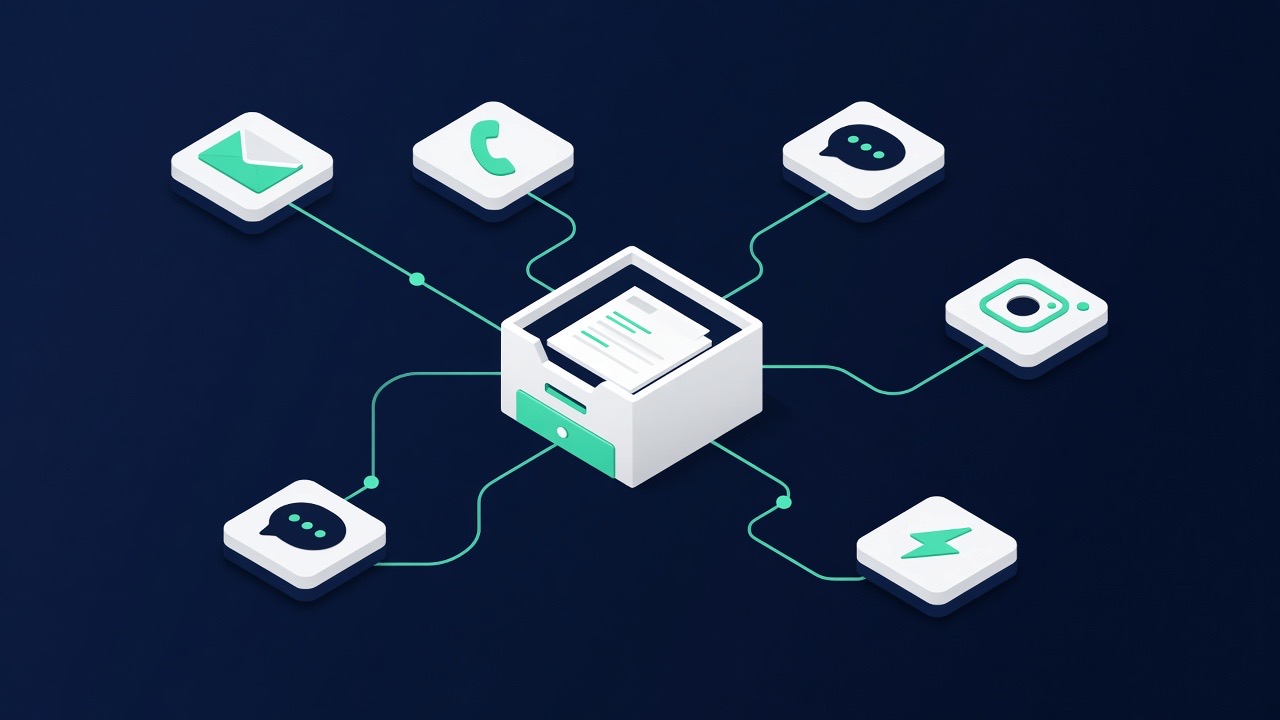
Your customers choose how they get in touch: WhatsApp, calling, e-mail or chat on your website. Slimbot bundles those channels — plus your website as knowledge base or builder — behind one brand and a shared inbox. In this chapter you'll see which channels there are, how you switch them on and off and what is needed per channel.
What you need
- An active account and access to Platform → Channels or Settings → Channels.
- Something extra per channel: a phone number for WhatsApp, access to your website for the chat or indexing, a domain name for business e-mail, or a number choice for phone answering.
- A plan that includes the desired channel — see Plans.
The channels in brief
| Channel | What for | What you need | Where you set it |
|---|---|---|---|
| Quick questions, appointments, follow-up | A business number | Connect WhatsApp | |
| Website chat | Converting visitors into leads | Access to your website or website builder | Chatbot & widget |
| Quotes, confirmations, longer questions | Your own domain name | ||
| Phone | Answer when you can't, call-back requests | A new or existing number | Phone & calling |
| Website | Knowledge base or new site | URL to index, or builder via SSO | Website / Train |
1. Switching channels on or off
- Go to Settings → Channels to tick preferences, or open Platform → Channels for status.
- Tick the channels you want to work on.
- Click save. The dashboard will immediately adjust the onboarding steps and shortcuts accordingly.
- Check the channel overview on the dashboard: for each channel you can see whether it is connected, requires an action or has not yet been set up.
2. Set up WhatsApp
For most businesses, this is the most important channel. You connect your own number with a QR code, you choose the official WhatsApp Business API, or you let us set it up. The full explanation is in Connect WhatsApp; a comparison of the methods can be found on Choose connection. After connecting, you determine in the settings whether the assistant reads along, makes suggestions or answers independently.
3. Placing the chat on your website
- Open Chatbot and turn on website chat.
- Enter your assistant's name and briefly describe what it may and may not say.
- Copy the code you receive.
- Paste that code into your website just before the closing
</body>. If you work with a web builder, pass on the code with this instruction. - Open your site in a new window and check whether the chat button appears in the bottom right. Ask a test question.
Conversations via the widget arrive on the Website tab in the inbox. That way you won't lose a visitor who wanted to ask something in the evening.
4. Set up business e-mail
- Go to Mailboxes.
- Create an address on your own domain, for example info or quote, or request a new address.
- Store the password you receive in a safe place.
- Open the webmail to check whether you can read and send.
- Then check the Mail tab in the inbox: incoming messages appear there alongside your WhatsApp conversations.
More details, including setting up on your phone, are in chapter E-mail.
5. Setting up phone answering
- Open Phone in the dashboard.
- Choose a new business number, or submit a request to port your existing number.
- Indicate what should happen if you do not answer: have the assistant answer, note a call-back request, or forward.
- Call the number yourself once to hear the greeting and check whether the call is recorded.
Missed calls, call-back requests and call history can be found at the contact. This way telephony doesn't remain a separate island. See also Phone & calling.
6. Website: knowledge base or build
- Open Website.
- Do you already have a website? Go to Train and choose Index my website with your URL.
- Don't have a site yet? Open the website builder in Slimbot (same login as your account).
- Then check whether indexed pages or FAQs are visible in the knowledge base.
7. Notifications per channel
You don't need to watch the screen all day. In Settings you set when you receive a notification: for a new conversation, for a new lead, or a summary once a day. Notifications can arrive by e-mail or as a WhatsApp message. For busy channels, choose the daily summary instead, otherwise the notification itself becomes a disturbance.
Which channel when?
- Start with WhatsApp if customers are already messaging you there. That's where the quickest result lies.
- Add website chat if you have visitors who browse but rarely call.
- Index or build your website so knowledge and brand sit on one login.
- Use e-mail for everything with an attachment: quotes, invoices and confirmations.
- Choose phone answering if you're often on the move and miss calls.
Background to that choice can be found in the knowledge base: Choosing channels and WhatsApp or e-mail.
Troubleshooting
| What you see | Likely cause | Solution |
|---|---|---|
| Channel ticked, but status remains empty | The channel hasn't been set up yet | Follow the steps per channel above and then check the dashboard |
| Chat button does not appear on the site | The code is in the wrong place or the page is cached | Place the code just before </body>, clear the cache and reload the page |
| No incoming e-mail visible | Mailbox not yet connected or e-mail arrives at a different address | Check the mailbox and whether your domain is configured correctly |
| Phone number not yet active | The request or transfer is still in progress | View the status of recent requests; we will contact you as soon as the number is ready |
| Channel cannot be ticked | The channel belongs to a different plan | Compare the features on Plans or read Plans & upgrade |
| Messages arrive twice | Two channels point to the same address or number | Choose one entry point per contact form and turn the others off |
Tips
- Feature the same channel on your website, in your signature and on your business card. That reduces fragmentation.
- Test each new channel yourself before announcing it to customers.
- Let the assistant only make suggestions per channel for the first week. You'll then see how it sounds on that channel.
- Agree within the team who monitors which channel, even if everything comes into the same inbox.
Frequently asked questions
Do I have to turn on all channels at once?
No, and that's usually not a good idea either. Start with the channel where your customers already come in, let that run smoothly for a week and only then add a second channel.
Will my customer notice a difference between the channels?
The customer chooses how to get in touch and receives an answer via that channel. Everything comes together in your own inbox, so you don't have to switch between programmes.
I've ticked a channel but nothing is happening. Why is that?
Ticking only determines that you want to use the channel. After that, the channel still needs to be set up: connect WhatsApp, place the chat code on your site, create a mailbox, activate a phone number or index your website.
Where do I see whether a channel is actually working?
On the dashboard and under Platform → Channels you can see per channel Active or Setup, with a link to the correct tool.
Can I use multiple phone numbers or mailboxes?
Yes, multiple addresses and numbers are possible. Which quantities suit your situation depends on your plan; the current options are on the plans page.
Can I switch off a channel again later?
Yes. Remove the tick in the settings and save. The conversation history is preserved, so you can start again later without loss.
Want to set up more? Continue with Settings & team or view the knowledge base.