Speech & voice
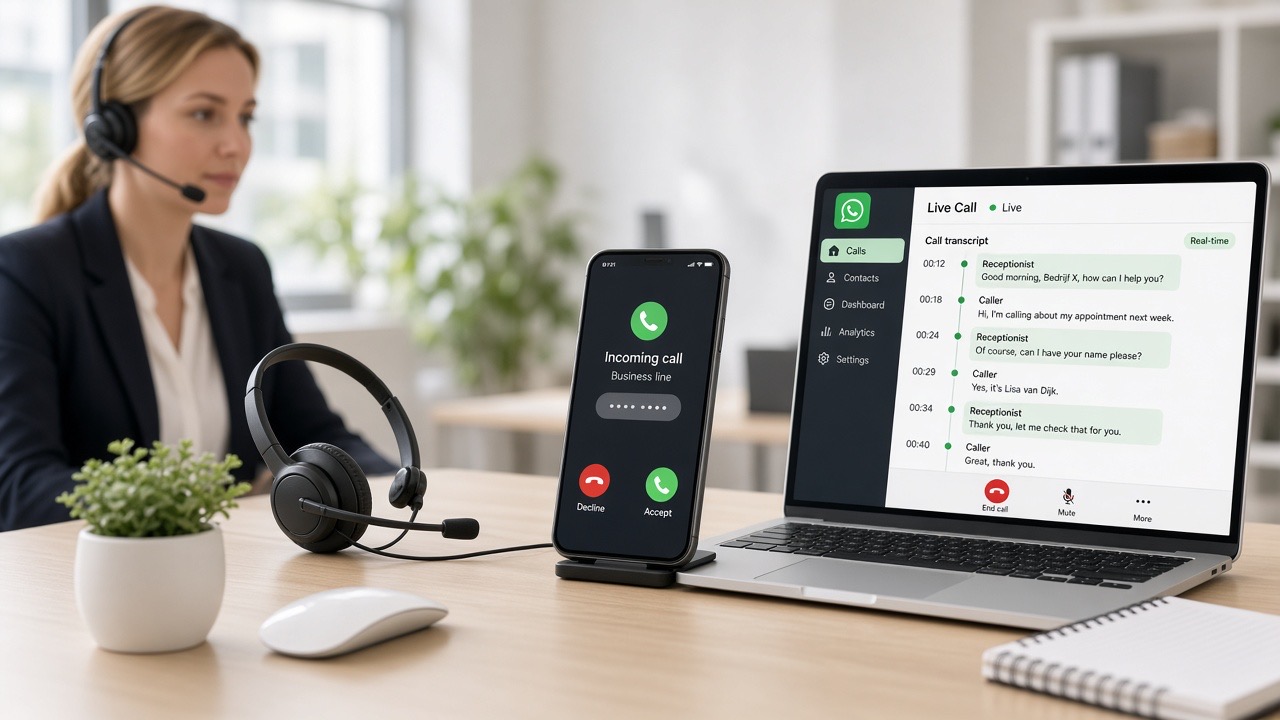
Speech makes your digital team member human. Customers who prefer to speak rather than type simply get an answer; callers hear a calm, clear voice instead of a menu. In this chapter you will read how to choose a voice, how voice messages on WhatsApp work, how to set a separate persona per number and what to watch out for to prevent pronunciation errors.
What you need
- An account with speech features in your plan — see Plans for what's included in your plan.
- A connected channel: WhatsApp for voice messages, or a phone line for calls. See Connect WhatsApp and Phone & calling.
- Headphones or a speaker to judge the examples fairly. Via a laptop speaker every voice sounds the same.
- A list of difficult words from your field: brand names, street names, abbreviations and your own company name.
Step 1 — Choose a voice
- Open Voice & speech in the dashboard.
- Listen to the Dutch voices. Pay attention not only to the sound, but especially to pace and intelligibility — a voice you find pleasant for a few seconds can be too busy in a two-minute conversation.
- Choose a voice and click Save.
- Use the preview button with your own text: have the voice speak your company name and a typical opening line.
- Unsure between two voices? Have a colleague choose blindly. Background and tips are in Knowledge base — Choose voice.
Step 2 — Voice messages on WhatsApp
If a customer sends a voice message, your assistant converts it to text, understands the question and replies — as text or as a spoken message with your chosen voice. You decide what the default is. Our experience: reply in the same form as the customer. Those who speak appreciate a spoken reply; those who type prefer to read.
- The transcription also means you can simply read back and search voice messages later in the inbox.
- Long voice messages are summarised, so you can see at a glance what it was about.
- If a customer speaks another language, the assistant recognises this and responds in that language.
Step 3 — Persona per number
A voice alone is not enough: the persona determines how your digital colleague speaks. In Slimbot you set a name, a role and a tone of voice — formal or informal, brief or detailed, with or without humour. If you work with multiple numbers or brands, each number gets its own persona with its own name and voice. Your service department can therefore sound different from your sales line, whilst both use the same knowledge.
You arrange this via Train persona in Slimbot. Knowledge and persona complement each other: the knowledge base determines what is said, the persona determines how. Also see Chatbot & website widget for filling that knowledge.
Step 4 — Being transparent about the digital colleague
Have the assistant introduce itself at the start of a conversation as your company's digital team member and mention that a colleague can take over. That's honest and it prevents awkwardness halfway through a conversation. For voice this is especially important: a good voice sounds so natural that people might otherwise think they're speaking to a team member. One short sentence is enough — "You're speaking with the digital assistant of [company]" — and then the conversation can simply continue.
Step 5 — Refine pronunciation
Dutch is a language full of exceptions, especially with proper names. Therefore do a pronunciation round before you go live:
- Have your company name read aloud. If it doesn't sound right, write it phonetically in the settings (for example
Bee-Kaa Techniekinstead ofBK Techniek). - Do the same with street and place names in your area and with brand names you mention often.
- Write phone numbers in separate groups, so they are pronounced more clearly.
- Avoid abbreviations in answers that are read aloud; writing out in full almost always reads better.
Speech in phone calls
If you also use telephony, the same voice and persona works on the phone. The assistant answers, listens, answers questions, connects to a team member, schedules appointments and can also make outbound calls. Conversations are recorded and summarised, so you can read them back later without listening to the entire recording. The complete setup is in Phone & calling.
Common mistakes and how to fix them
- The voice sounds flat or rushed. Usually that's not down to the voice, but to the text: sentences that are too long without punctuation. Shorten the sentences and use full stops instead of commas.
- Your company name is pronounced incorrectly. Record the phonetic spelling in the settings; the normal spelling remains visible for text channels.
- Voice messages are not being answered. Check whether speech is included in your plan and whether the conversation has not been taken over manually — as soon as you reply yourself, the assistant leaves the conversation to you.
- The assistant replies in the wrong language. This happens with short or unclear recordings. Set a preferred language if you almost always have Dutch customers.
- The customer is difficult to understand. Recordings from the road or from a workshop are noisy. The assistant does not fill in anything it does not understand, but asks again — leave that behaviour in place instead of training it away.
- The tone does not match the brand. Adjust the persona, not the individual answers. One change applies to all channels and all numbers with that persona.
Practical examples by sector
- Installation and emergency services. Engineers on the road prefer to speak rather than type. The assistant converts their message to text and places it as a task in the inbox. Customers who call in the evening hear a calm voice that asks how urgent it is. See for installers.
- Hair salon and beauty. Customers speak their appointment request whilst driving; the assistant confirms by text and forwards it to the diary. See for hairdressers.
- Hospitality. Reservations come in during busy periods, when no one can answer the phone. A friendly voice takes the call and passes on the details.
- Healthcare and practices. Organisational questions are answered, substantive questions always go to a team member. The assistant explicitly states that it is digital. See for healthcare.
- Estate agency. Visitors leave viewing requests outside office hours; the summary is ready the next morning. See for estate agents.
Frequently asked questions
Can my digital team member understand voice messages?
Yes. A spoken message is converted to text, understood and answered. You can have the reply sent as text or as a spoken message with the voice you chose.
Can I set a different name and voice per phone number?
Yes. Each number can have its own persona with its own name and voice, whilst all numbers use the same company knowledge. Handy if you have multiple brands or departments.
Does the assistant also speak other languages?
Yes, the assistant is multilingual and recognises your customer's language. If you want to lock that in, set a preferred language.
Can I hear whether I'm speaking to a human or to AI?
We make that deliberately clear: the digital team member introduces itself as a digital colleague and mentions that a team member can take over. Transparency is part of a good customer experience.
My business name is mispronounced — can that be improved?
Yes. Record the name phonetically in the voice settings. Do the same for difficult street names, brand names and technical abbreviations that come up frequently.
Is speech included in my plan?
Speech functions are part of the business plans. On Plans you can see what is included in your current plan; upgrading is possible at any time via Plans & upgrade.